LEGO Building App Explained: No Paper Manual Needed
Somewhere around step 163, it happens. The booklet shows a gray piece floating above the model, an arrow pointing somewhere ambiguous, and the thing on your table looks nothing like the picture. This is the moment the LEGO building app was made for. It's free, it's official, and it turns the paper manual into a 3D model you can spin around until the confusing step finally makes sense.
Here is what the app actually does, where it falls short, and when it's genuinely worth the download – for you, or for the person you just handed a set to.
What the LEGO Building App Actually Is
Officially, it's called LEGO Builder, and it comes straight from the LEGO Group, not a third-party developer. Think of it as the paper booklet's younger sibling: the same steps in the same order, drawn as an interactive model instead of flat pictures. It used to go by the name LEGO Building Instructions, so if the person you're buying for mentions that one, it's the same app.
It isn't a game, and it isn't a store in disguise. It exists to get a set built. That's the whole pitch.
Where to Get It (It Costs Nothing)
Search for LEGO Builder in the App Store or Google Play and it sits near the top – free, no subscription, no locked features asking for money three steps in. A free LEGO account is optional; it unlocks the saving features, which we'll get to. If you can install a weather app, you can install this.
The 3D Instructions Are the Whole Point
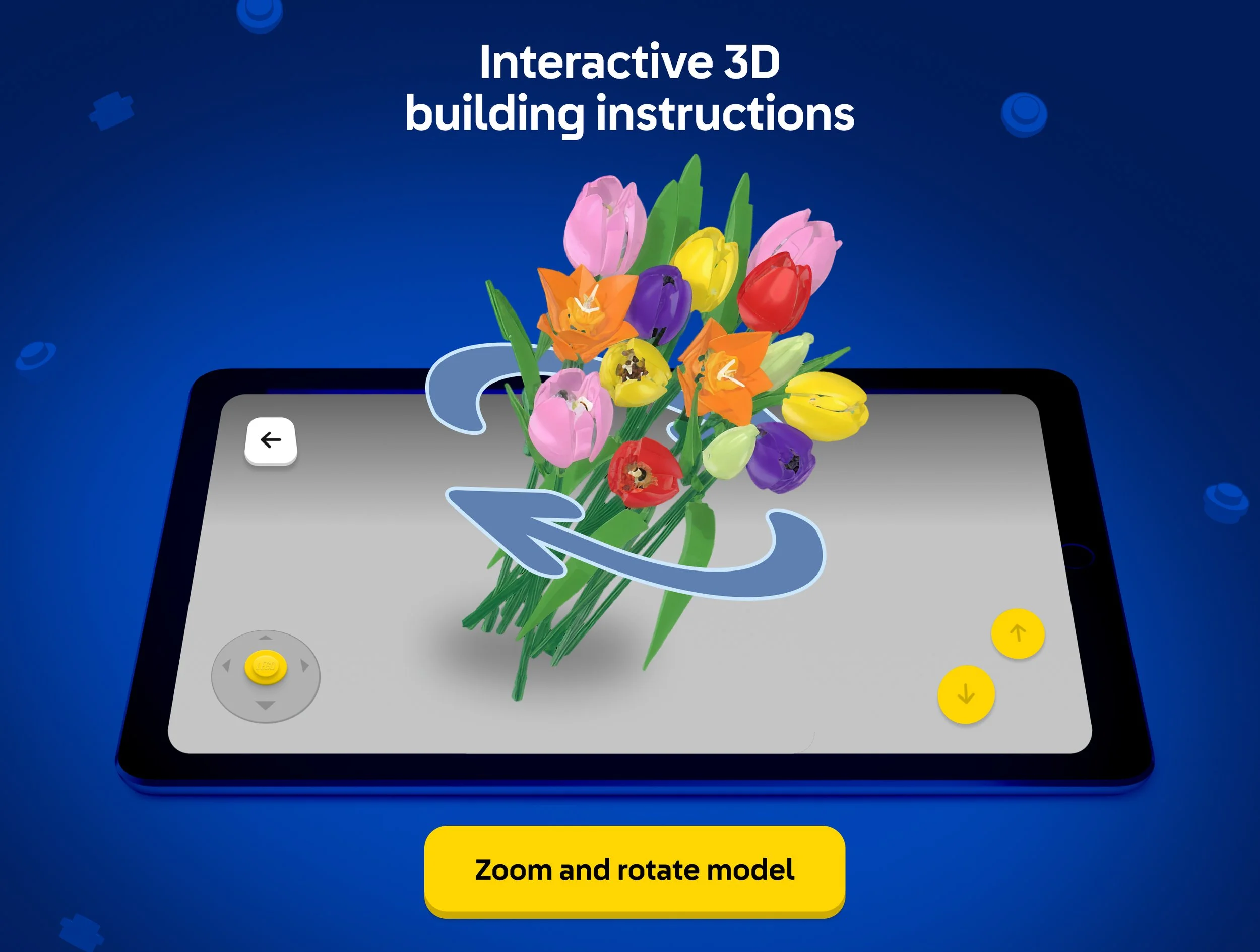
Open a set and instead of a printed page you get the model itself, floating on screen. Pinch to zoom, drag to rotate, tilt it to see exactly where that one stubborn piece attaches – from above, from behind, from any angle the paper never shows. Sign in with that free account and the app also remembers where you stopped, so putting a half-built set down for a week costs you nothing but the week.
Now the honest part. Rendering a model in real time makes your phone's graphics chip work the way a 3D video game does, and the screen stays awake for the entire session. Batteries hate this combination. A long evening of building can drain a full charge, so plug in before you start, not after the warning pops up.
Build Together Turns One Booklet Into a Team Sport
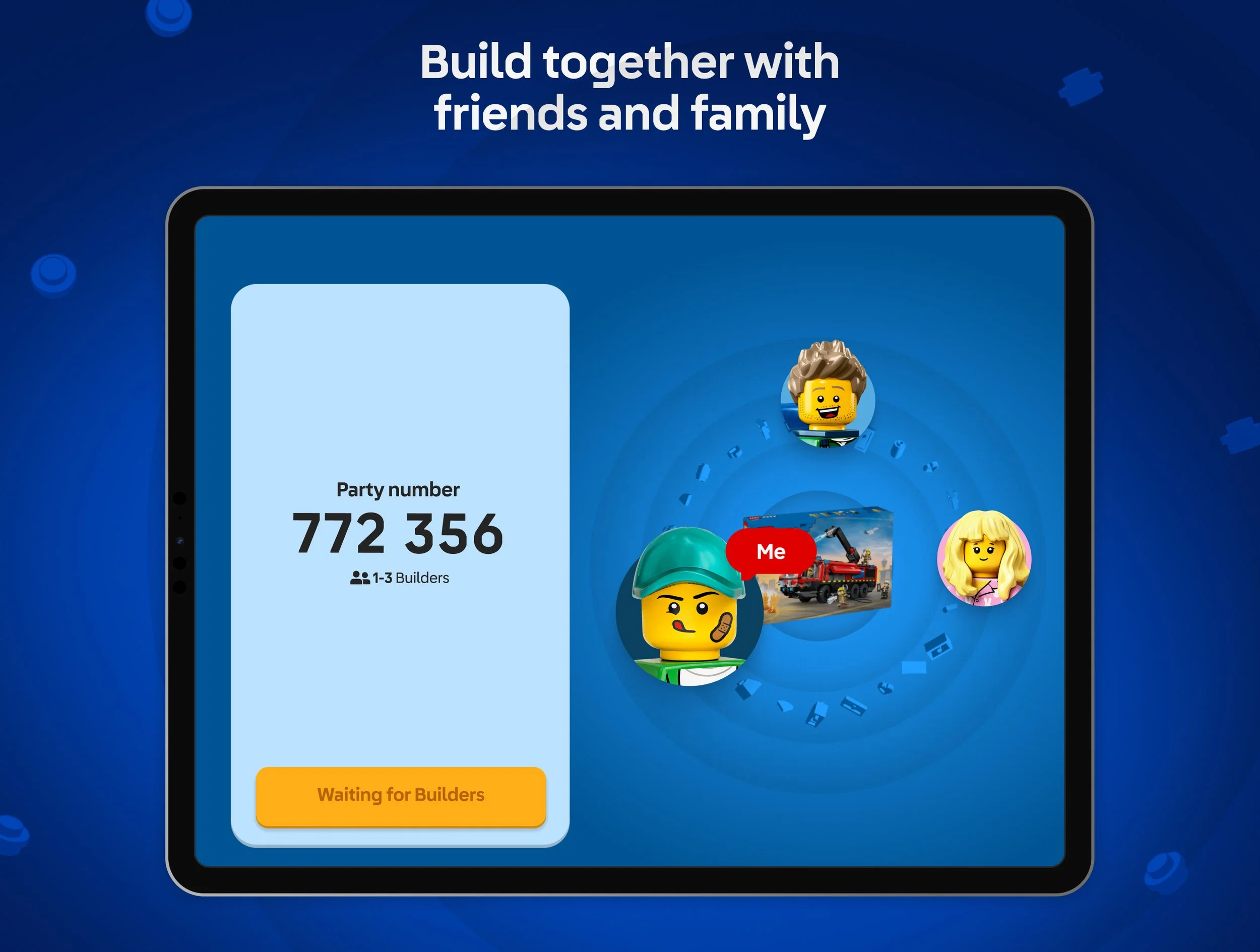
Build Together is the feature nobody expects from an instruction manual. One person hosts, shares a PIN code, and everyone else joins from their own phone or tablet. The app then splits the work, handing each builder their own steps and small side-builds, so a family can build one set at the same time instead of taking turns watching. For a gift-giver, that changes the math: a set plus this mode is a plan for the whole evening, not just a box to hand over.
One catch: not every set supports it. The app shows you which ones do, so check before promising the whole household a group project.
An Instruction Library Going Back to 2000
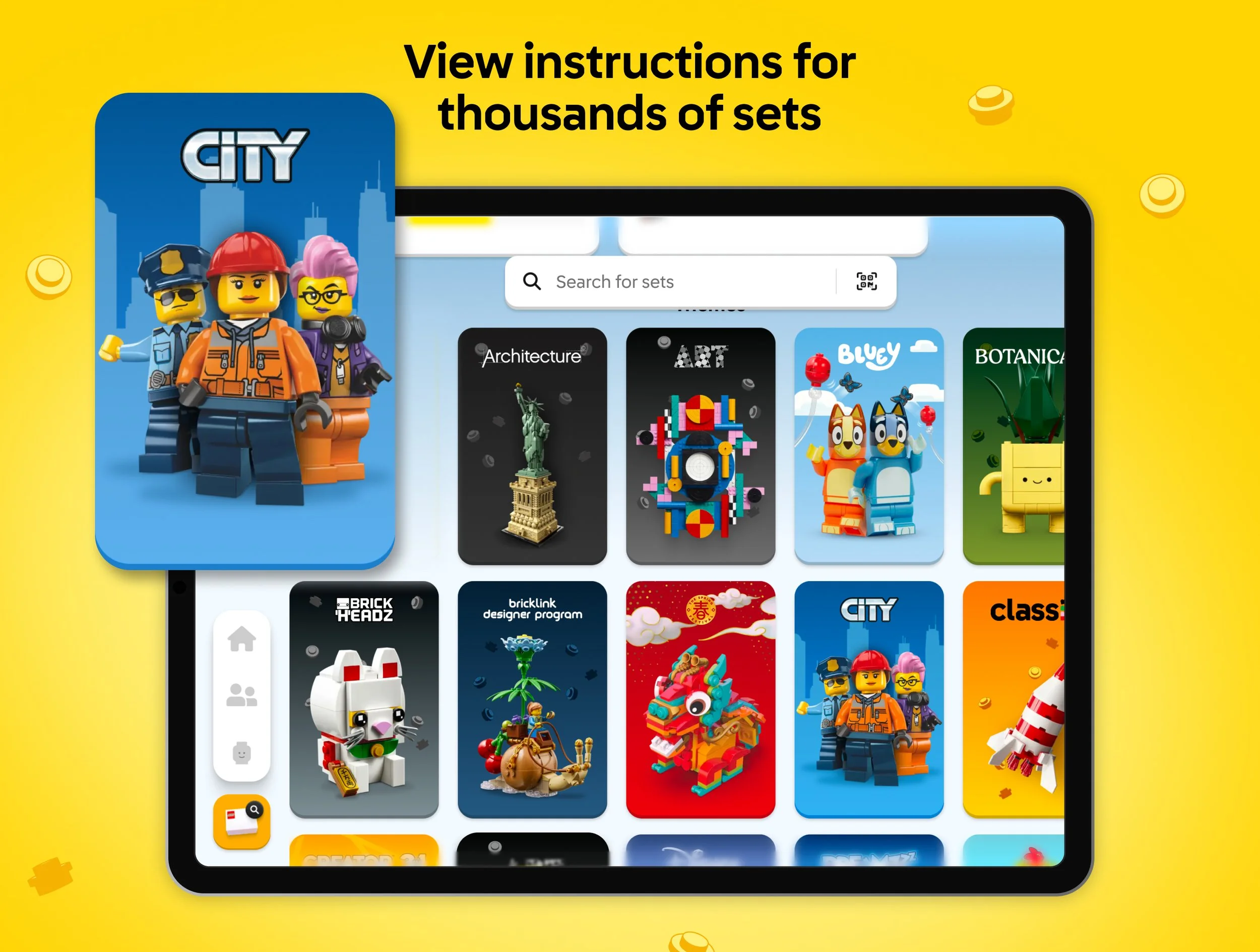
This is the feature that quietly rescues gifts. The app holds thousands of manuals reaching back to 2000, searchable by set name or number. Secondhand set with no booklet in the box? It's probably in there. The paper manual met the recycling bin three moves ago? Same answer.
If the booklet is in hand, there's a faster route: scan the QR code printed on newer manuals and the digital version opens on the spot. Just don't expect every set ever made – the further back you go, the more gaps appear.
My Collection, and the Old-School PDF View
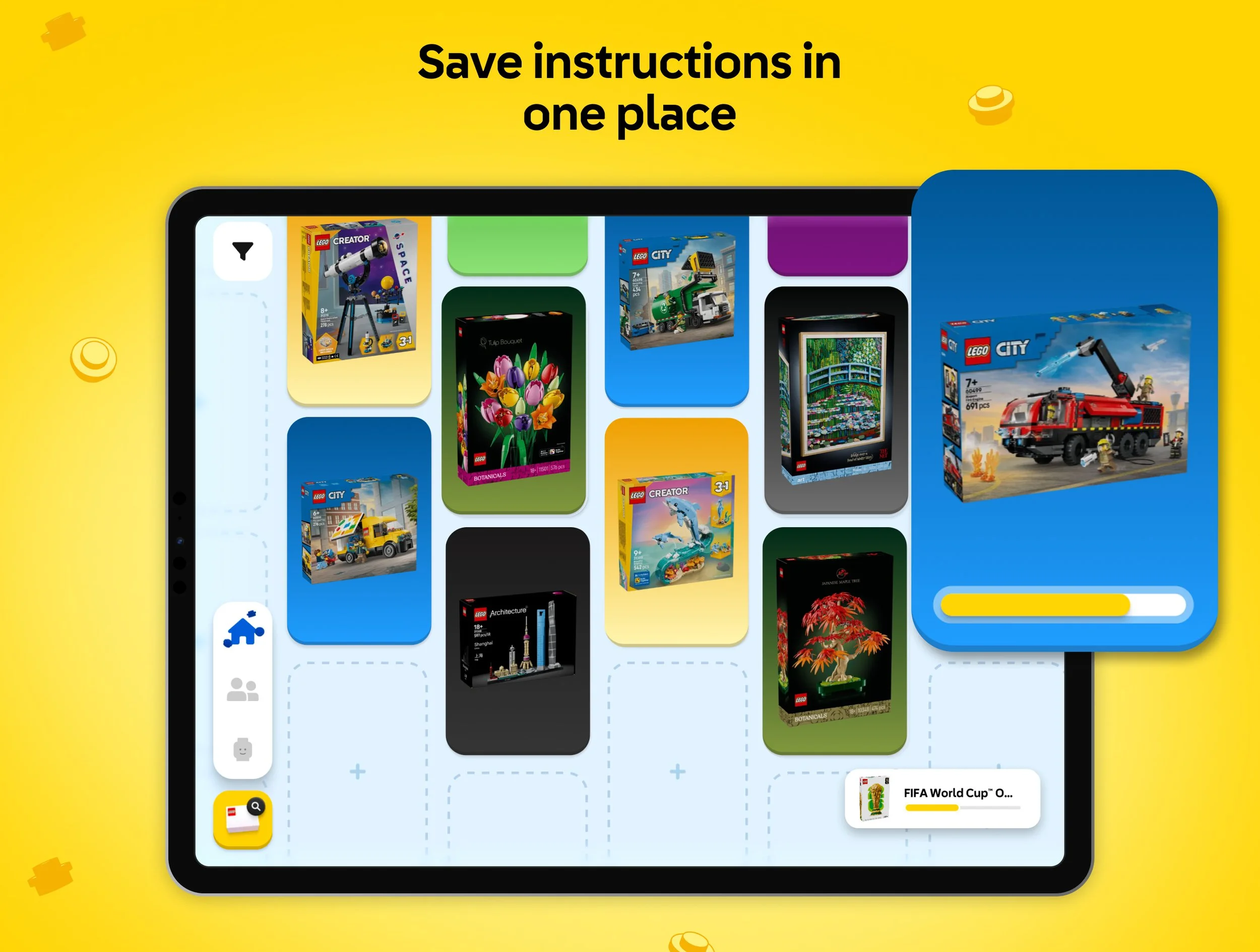
Finish a build and the app files it into My Collection, a running catalog of completed and saved sets, right down to a total count of bricks built. A small, harmless pleasure – the digital version of lining up trophies – and the reason that free account earns its keep.
Prefer the classic experience? A standard PDF view shows the traditional page-by-page layout, and some manuals only exist in that format anyway. Flipping digital pages still beats hunting for a booklet the couch swallowed.
When It Lags, Freezes, or Crashes
For most people the app runs without drama. The exceptions cluster around the big stuff: load a 3,000-piece model on an older phone and the rendering can stutter, freeze, or shut the app down entirely. Low storage and a dozen background apps make it worse, and running an outdated version of the app or the operating system doesn't help either.
The fixes are the unglamorous ones. Close whatever is running in the background, install updates for the app and the device, restart the phone. If it still misbehaves, delete and reinstall – progress saved to a LEGO account comes back with it.
A plain verdict, then. Most adults won't need the app for most builds; the paper booklet remains genuinely good at its job. But the first time a piece refuses to make sense from the printed angle, spinning the model until it does stops feeling like a gimmick and starts feeling like a lifesaver.
The App Still Needs Something to Build
Even the best app needs something queued up to build. How to Choose Your First LEGO Set as a Returning Adult handles the part that comes before any download, and The Grown-Up's Guide to LEGO Sets: What Changed in 20 Years is the twenty-year version of that whole story.
No fumbling for a dropped page makes the whole process calmer too, which is part of what LEGO Sets for Stress Relief That Actually Work is about. And because digital instructions never really get lost, Can You Rebuild a LEGO Set More Than Once? gets a much easier answer.